

Private meeting notes for Mac
Meeting notes that stay on your Mac
Oatmeal records your microphone and your Mac’s audio, with no bot joining the call. Afterwards it writes the transcript and a summary on your Mac. Your notes stay yours, and AI suggestions only count once you confirm them.
Launch moves to the 14th. Priya checks the venue.
Ask about the budget before Friday
07:42 · System audio “Let’s move the launch to the fourteenth.”
Action · confirmed Check the venue for the 14th
No bot
Nothing joins your call
Oatmeal listens the way you do: through your Mac. It records your microphone and the sound your Mac plays, so it works with any call app and nobody sees a notetaker in the participant list.1
Recording starts only when you press Start, and the window always shows that it’s recording.
Meeting notes without a bot1 Oatmeal records sound only. It never captures what’s on your screen.
Two sources
Your voice and theirs, kept apart
Your microphone is labelled Me and everything your Mac plays is labelled System audio. Each has its own level meter, so you can see both are coming through before the meeting gets going.
If your microphone goes quiet for five seconds, Oatmeal tells you. If audio drops out, the gap shows in the recording instead of being quietly papered over.2
2 System audio is everyone else mixed together. Oatmeal doesn’t identify or name the other people on the call.
Transcript
A transcript you can correct
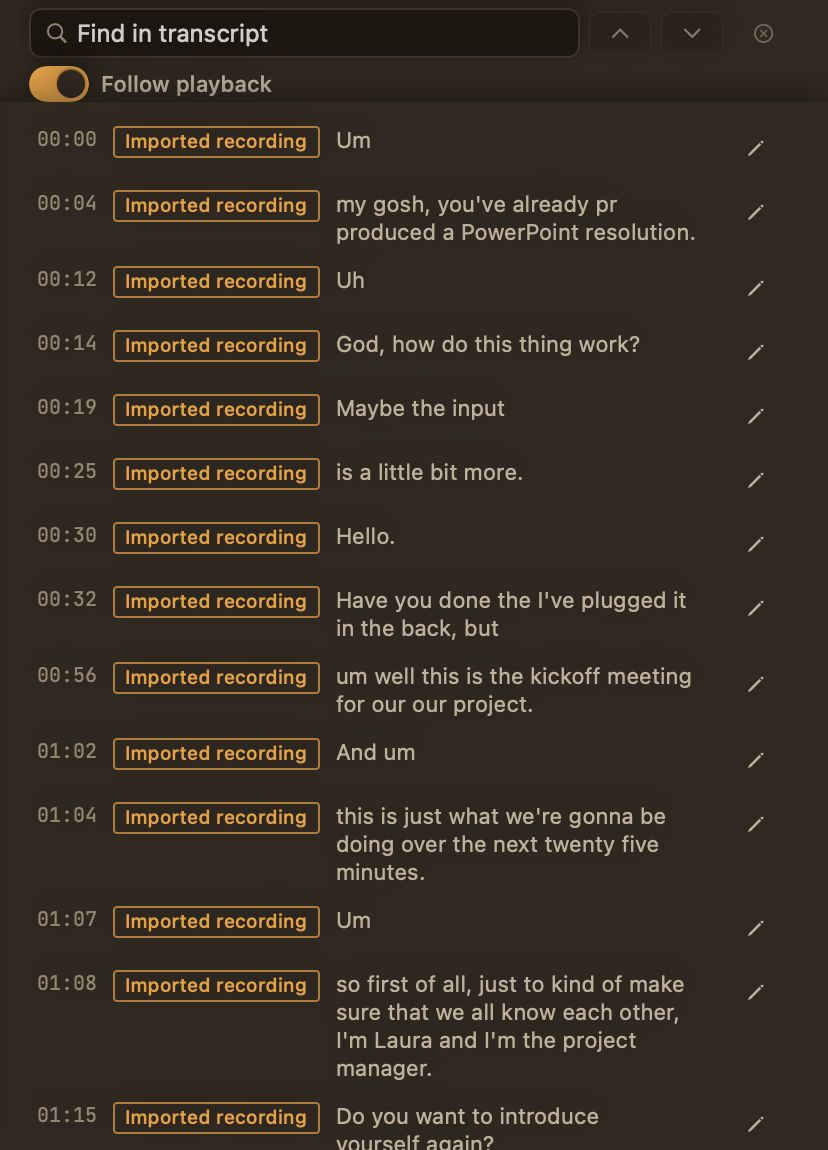
After the meeting, Oatmeal writes the transcript on your Mac. Play it back and the current word is highlighted. Press ⌘F to find a phrase and see how many times it came up.
Spot a wrong word? Fix it in place. If you transcribe the meeting again later, your corrections are kept.
English only. The transcript arrives after the meeting, not during it.
Summaries
Summaries that point back to what was said
Oatmeal reads the meeting five minutes at a time, then writes an overview, follow-ups and a timeline. Each part comes from the transcript, so you can check it against the moment it came from.
Pick a style for the meeting, General, Standup, 1:1 or Interview, and how much detail you want: Crisp, Balanced or Detailed. Add the names and terms your team uses so they come out spelled right. When a summary is useful, Add to notes puts it on your page.
Private meeting summaries· Summaries are written by a model on your Mac. They can miss things, which is why they point back to the transcript.
Decisions and action items
Suggestions stay suggestions until you stamp them
Oatmeal can suggest the decisions and action items it heard. Each one arrives as a proposal in the margin, with the time it came from. Nothing becomes a decision or a to-do until you confirm it.
If nothing clear was decided, the list stays empty rather than inventing something.
Decisions and action itemsSuggested · action · 07:42 Send the revised plan
Confirmed Send the revised plan
Search
Find anything anyone said, in any meeting
Search every meeting at once by keyword, and filter by type and date. You can also turn on search by meaning, so “budget” finds the meeting where someone said “we’re over on spend”.3
Search past meetings3 Search by meaning is optional and uses a model you add. Searching 10,000 items took about 20 ms, measured on an M3 Max.
Crash safety
A crash doesn’t take your meeting with it
Oatmeal saves as it records, so a crash, a restart or a dead battery doesn’t lose the meeting. Open Oatmeal again and choose to carry on recording the same meeting or to keep what was saved.
Long transcriptions can be stopped and resumed later without starting over.
Crash-safe recording· Audio is saved in 30-second pieces, so a crash can cost at most the piece that was being recorded.
Export
Take your notes anywhere, as Markdown
Export a meeting to a folder of your choice: your notes and transcript as a Markdown file that opens in any notes app, with the recordings too if you want them.
Already have a recording? Import an audio file and Oatmeal transcribes it the same way.
Export to Markdown· When you import a file, Oatmeal keeps a private copy and doesn’t store the original file name or where it came from.
Privacy
Your meetings never leave your Mac
- Transcripts, summaries and search are all made on your Mac.
- No account, no cloud, and nothing about your meetings is ever sent anywhere.
- Recording, transcription and search work without an internet connection.
- Choose whether to keep recordings after they’re transcribed, and delete a recording or a whole meeting whenever you like.
· A 21-minute meeting was transcribed in about 10 seconds, measured on an M3 Max with the recommended transcription model.
Before you start
Bring your own models
Oatmeal works with transcription and summary models you add to your Mac. They aren’t included in the app, and there’s no download button inside it.
Settings lists the models it finds, marks the ones we’ve tested as Qualified and the rest as Experimental, and has a button that checks a model works before your next meeting.
· We’d rather say this up front than surprise you after you install.
Consent
Tell people you’re recording
Oatmeal records only when you press Start, but it can’t know whether everyone on the call has agreed. Letting people know, and following the rules where you and they are, is up to you.
Compare
How Oatmeal compares
Plain notes on where Oatmeal fits next to the meeting tools you might already know, including where they do more.
Oatmeal vs Granola
Neither puts a bot in your call. The difference is where your audio goes. Granola sends it to a transcription service as you talk; Oatmeal keeps everything on your Mac.
See the comparisonOatmeal vs Otter.ai
Otter is a cloud notetaker with live captions and a bot that can join your calls. Oatmeal is a private Mac app that records without a bot and does the work afterwards, on your Mac.
See the comparisonOatmeal vs Fireflies.ai
Fireflies is built for teams that want meetings flowing into their CRM and workspace. Oatmeal is built for people who want their meetings to stay on their own Mac.
See the comparisonOatmeal vs Fathom
Fathom is a generous cloud notetaker with CRM sync, now with a bot-free option in beta on Mac. Oatmeal skips the cloud entirely and keeps every meeting on your Mac.
See the comparisonOatmeal vs MacWhisper
Both keep transcription on your Mac. MacWhisper is a versatile transcription app; Oatmeal is a meeting notebook built around your notes, with summaries, decisions and search across meetings.
See the comparisonOatmeal vs Anarlog (Hyprnote)
Anarlog, the app that was Hyprnote and then Char, is one of the few meeting tools that also works on-device. Both skip the bot. Here’s where they differ.
See the comparisonQuestions
Is Oatmeal free?
Yes. Oatmeal will be free, with no account and no subscription. It isn’t available yet; it’s coming soon.
Does a bot join my calls?
No. Oatmeal records your microphone and the sound your Mac plays, so nothing joins the call and nobody gets an invite from a notetaker.
Do I see the transcript during the meeting?
No. Oatmeal records during the meeting and writes the transcript afterwards, on your Mac. While you record, the page is yours for your own notes.
Which languages does it understand?
English only, for now.
Does it know who said what?
It knows what came from your microphone (labelled “Me”) and what came from your Mac’s speakers (labelled “System audio”). It doesn’t identify or name the other people on the call.
Do I need to set anything up?
Yes. Oatmeal works with transcription and summary models you add to your Mac; they aren’t included in the app. Settings lists the ones it finds, marks which have been tested, and has a button to check one works.
Does it work with Zoom, Teams and Meet?
It records whatever your Mac hears, so it works with any call app. An optional reminder can notice when Zoom, Teams, Slack, FaceTime, Chrome, Safari or Arc starts using the microphone. It never listens and never starts recording for you.
Which Macs does it run on?
Macs with Apple silicon running macOS 15 or later. Intel Macs aren’t supported.
Oatmeal is almost here
Free for Apple silicon Macs running macOS 15 or later. Coming soon.